![lyssn_mark (1).png]](https://knowledge.lyssn.io/hs-fs/hubfs/lyssn_mark%20(1).png?height=40&name=lyssn_mark%20(1).png)
Remove Lyssn access to your computer’s camera
- Open Google Chrome
- Click the 3 vertical dots at the top right of the window
- Select “Settings”
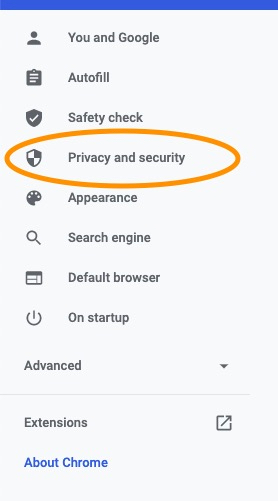
- On the left menu, select “Privacy and Security”

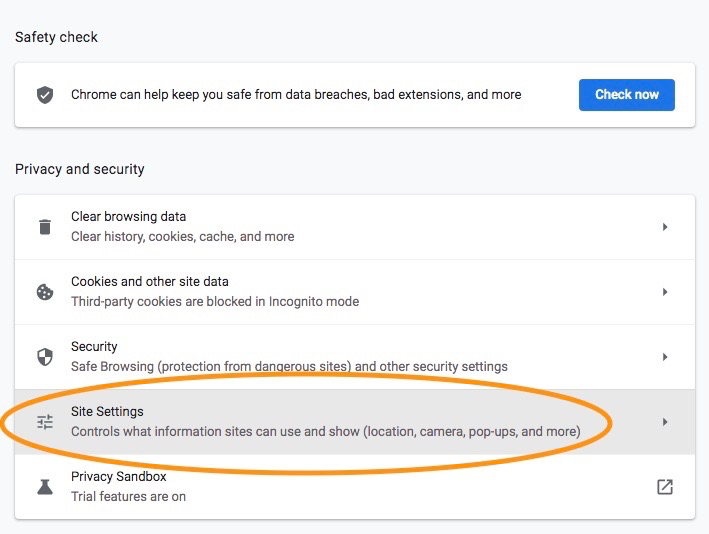
- Select the “Site Settings”
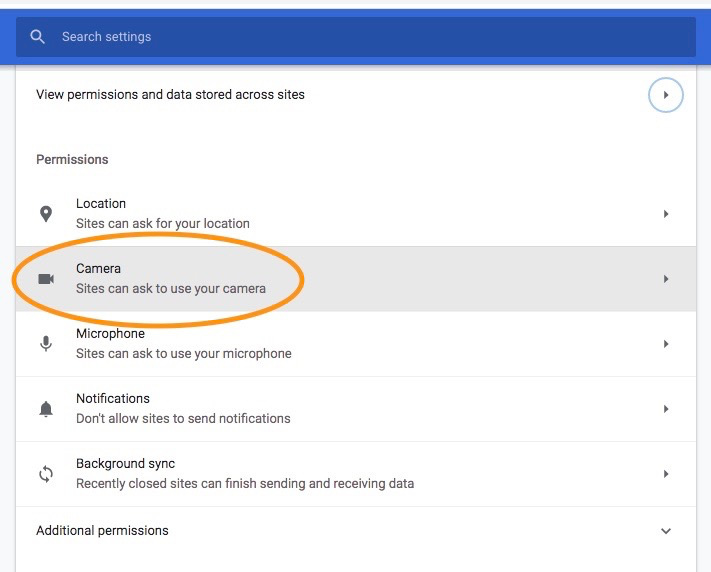
- Scroll to the section labeled “Permissions”
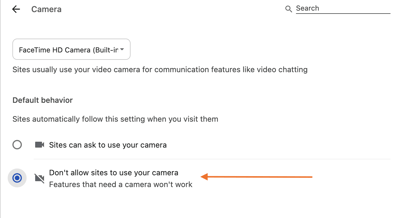
- Select “Camera”
- Select the button
This will prevent video recording of in-person sessions