![lyssn_mark (1).png]](https://knowledge.lyssn.io/hs-fs/hubfs/lyssn_mark%20(1).png?height=40&name=lyssn_mark%20(1).png)
As of version February2026v1.0, single-program and multi-program administrators have access to a new tool to monitor program utilization and seat allocation. The "Usage" tab can be found in the following locations:
Single Program Administrators
" Admin "--> "Manage Accounts" tile --> "Usage" tab in the secondary navigation.
Multi-Program Administrators
" Admin "--> "Manage Accounts Across Programs" tile --> "Usage" tab in the secondary navigation.
Feature Overview
The "Usage" tab displays two types of data. The first is how many seats are being used compared to how many seats are contracted. The second is distribution of user's last activity over time. Review the following screenshot: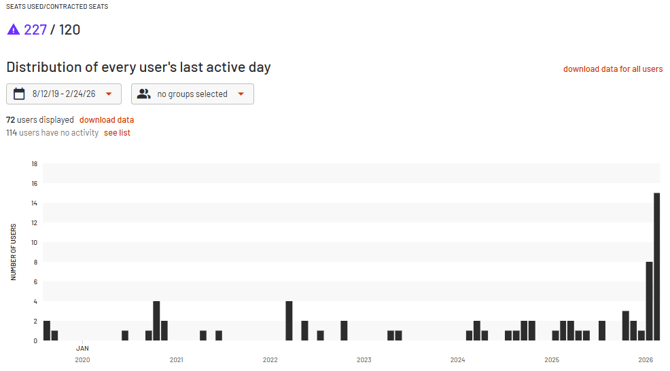
In reviewing the data shown above, we can see that this program is using 227 seats, but is contracted for 120 seats. Because used seats are higher than contracted seats, there is a caution icon visible.
We can also see the distribution of every user's last active day. The last active day is the day in which a user last interacted with the Lyssn platform in some capacity.
The distribution graph allows for two different manipulations: time slice and group filtering. In the image above, we have requested to view data spanning from August 12, 2019, through February 26th, 2026. Furthermore, we are not filtering by a specific group - instead we are viewing all users. Note: hovering over the bars in the graph will produce a visual with an explanation of the user count.
Under the date and group selectors, we notice that there are 72 total users represented in the graph as having been active within the timeframe, while 114 users have not been active within the time frame. We can "download data" for the active users to see information about their most recent activity, and we can choose to "see list" of the users who have not been active.
Explanation of Downloads
There are three possible download types in the usage view:
- Download data for active users in the given timeframe and groups. This download results in a .csv file which includes the following columns: user ID, username, first name, last name, email, active (y/n), last activity date, groups id(s), group name(s), is provider (y/n), us supervisor (y/n), is admin (y/n), is group admin (y/n), is developer admin (y/n). Only users who have been active in the timeframe and group selections will appear in the download.
- Clicking on "see list", next to the number of users with no activity, will show a visual display of the users and offer a download of their email addresses. This can be used to manually prompt inactive users should a single or multi-program administrator see fit.
- Lastly, clicking on "download data for all users" will result in a .csv file with the same columns listed above in number 1, but will represent all users with an allocated seat in the program.