![lyssn_mark (1).png]](https://knowledge.lyssn.io/hs-fs/hubfs/lyssn_mark%20(1).png?height=40&name=lyssn_mark%20(1).png)
Ensure your browser is up to date by following the guidance below
- Open Google Chrome
- Click the 3 vertical dots at the top right of the window

- Select “Settings”
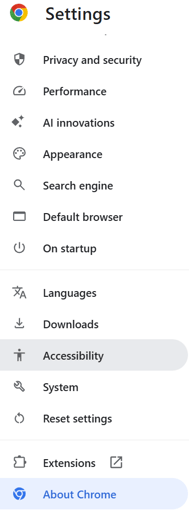
- On the left menu, select “About Chrome”
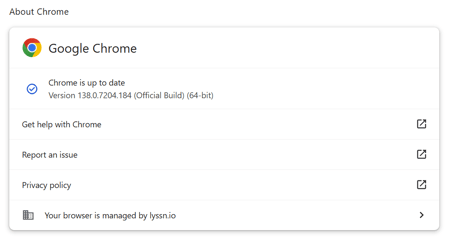
- The following screen will appear and confirm Chrome is up to date (as pictured below) OR will recommend an update.
Ensure Lyssn can access your computer’s camera and microphone
- Open Google Chrome
- Click the 3 vertical dots at the top right of the window
- Select “Settings”
- On the left menu, select “Privacy and Security”
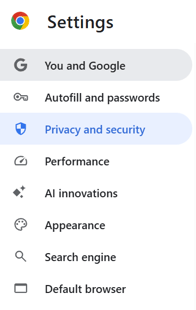
- Select the “Site Settings”
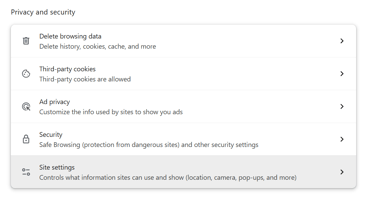
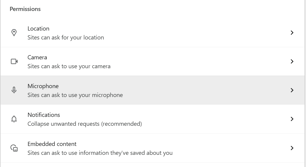
- Scroll to the section labeled “Permissions”
- Select “Camera”
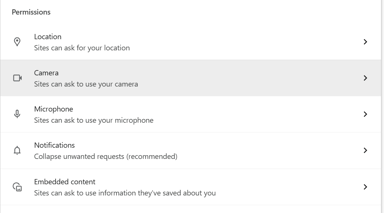
From the dropdown list of options, select the camera you will be using
- Click the back arrow next to “Camera” to go back to the previous screen
- Select “Microphone”